
Fix HDMI Cable Issues: No Signal, Flicker & Blurry Image

Table of Contents

Ever settled in for a movie night or gaming session only to be greeted by a black screen, strobing flashes, or a pixelated mess? HDMI cables are the backbone of home entertainmentโ€”until they fail. This guide breaks down the three most frustrating HDMI headaches, with quick, actionable fixes to get your setup back to perfect in minutes.


1. HDMI No Signal: Bring Your Screen Back to Life

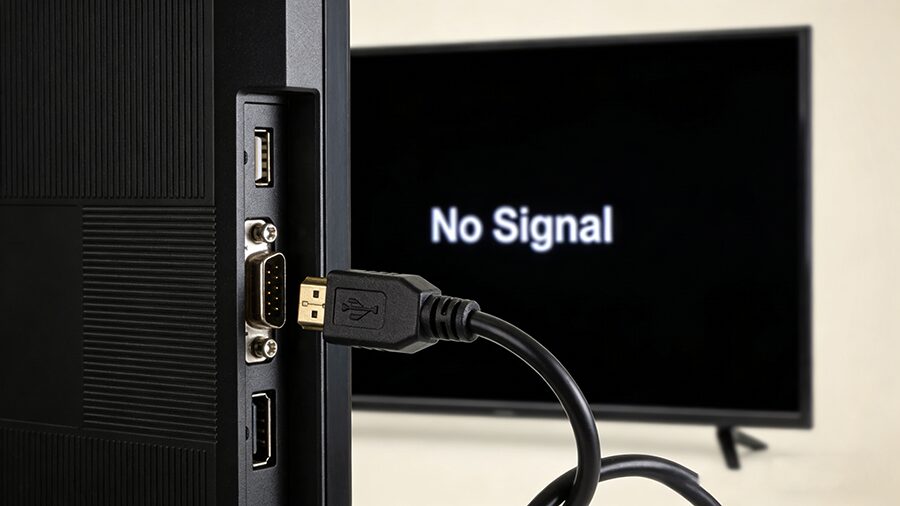
Thereโ€™s nothing more anticlimactic than hitting โ€œplayโ€ and seeingย โ€œNo Signalโ€ย stare back at you. Loose connections and compatibility gaps are usually to blame.
Quick Fixes:

  1. Reseat the Cable: Unplug the HDMI cable from both your source (console, Blu-ray player) and display (TV/monitor). Wait 30 seconds, then firmly reinsert until you hear a click. Loose connections cause 70% of no-signal issues!
  2. Test a Different Port: HDMI ports wear out over time. Swap the cable to an unused port on your TV or source device.
  3. Power Cycle Devices: Turn off both devices, unplug them from the wall for 60 seconds, then restart. This clears temporary firmware glitches.
  4. Verify Input Source: Use your TV remote to confirm youโ€™ve selected the correct HDMI input (e.g., โ€œHDMI 2โ€).
  5. Try a Spare Cable: Borrow a working HDMI cable (matching your deviceโ€™s version) to rule out a damaged cord.


2. HDMI Flicker: Stop the Annoying Strobing

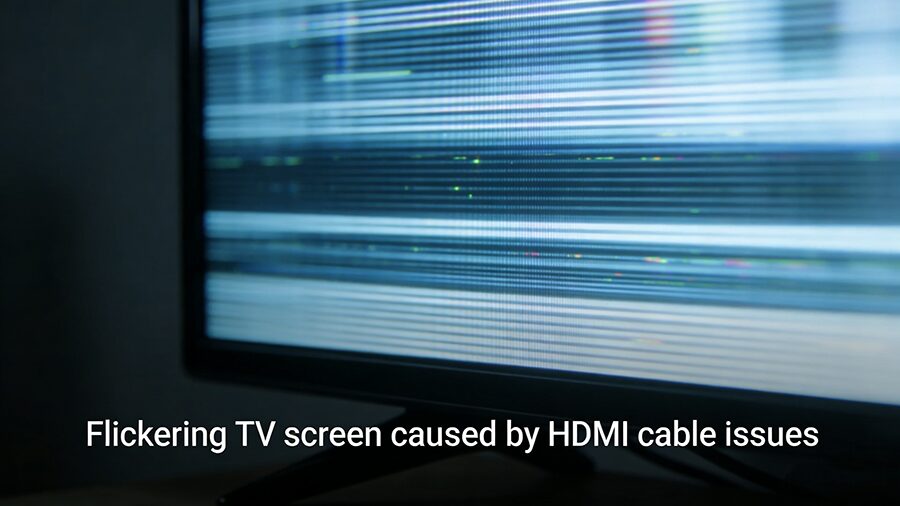
Flickering screens donโ€™t just ruin immersionโ€”they can strain your eyes. Most cases stem from signal degradation or mismatched settings.
Quick Fixes:

  1. Match Refresh Rates: Go to your TVโ€™s settings and set the refresh rate to match your source device (e.g., 60Hz for streaming, 120Hz for gaming). Mismatched rates are the top flicker culprit.
  2. Upgrade to a Certified Cable: Long, uncertified HDMI cables canโ€™t handle high-bandwidth signals (like 4K/60Hz). Opt for aย Premium HDMI 2.0ย orย Ultra High Speed HDMI 2.1ย cable for reliable performance.
  3. Eliminate EMI: Keep HDMI cables away from power cords, Wi-Fi routers, or speakersโ€”electromagnetic interference causes random flickering. Use shielded cables for tight spaces.
  4. Shorten Cable Length: Cables over 10ft (3m) lose signal strength. Swap for a shorter cable, or add an HDMI signal booster if you need extra length.


3. Blurry HDMI Image: Restore Crisp Visuals

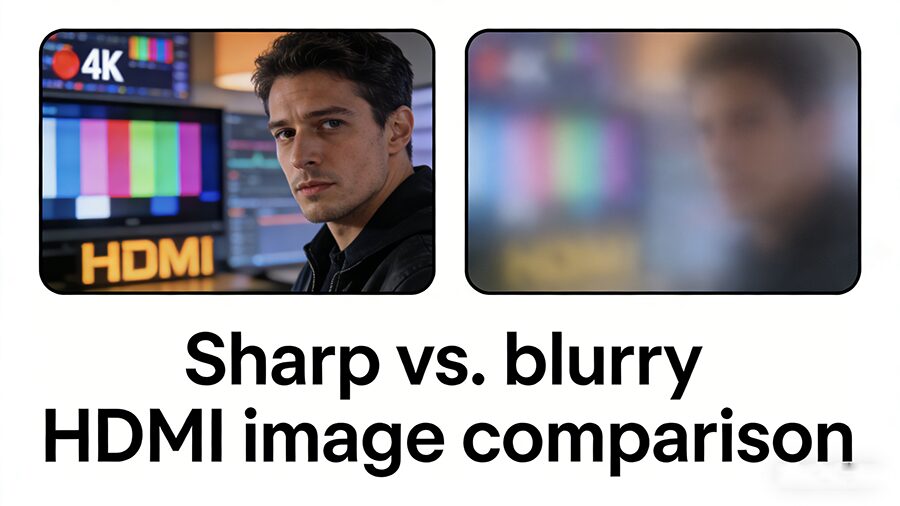
A blurry, soft image defeats the point of 4K/8K displays. Dirty connectors, low-quality cables, or misaligned settings are usually the problem.
Quick Fixes:

  1. Clean Connectors: Dust or corrosion on HDMI pins distorts signals. Gently wipe the cable ends and port with a dry microfiber cloth (no liquids!).
  2. Set Native Resolution: Most TVs have a โ€œnativeโ€ resolution (e.g., 3840×2160 for 4K). Go to your source deviceโ€™s settings and match this resolutionโ€”scaling causes blurriness.
  3. Ditch Cheap Cables: Thin, unbranded HDMI cables canโ€™t transmit high-resolution signals clearly. Invest in a reputable brand (e.g., Monoprice, Belkin) with version certification.
  4. Disable Overscan: Many TVs stretch images to fill the screen, softening edges. Turn on โ€œ1:1 Pixel Mappingโ€ or disable โ€œOverscanโ€ in your display settings.


HDMI Version Compatibility Chart (Quick Reference)
Most issues stem from using the wrong HDMI version for your device. Use this chart to check compatibility:
HDMI Version Max Resolution/Refresh Rate Ideal For
1.4 4K@30Hz, 1080p@120Hz Basic 4K streaming, older consoles (PS3, Xbox 360)
2.0 4K@60Hz, 1440p@144Hz Modern 4K TVs, mid-range gaming (PS4 Pro, Xbox One X)
2.1 8K@60Hz, 4K@120Hz, 1440p@240Hz High-end gaming (PS5, Xbox Series X), 8K TVs


Pro Tips to Avoid Future HDMI Issues

  • Buy Certified Cables: Look for the โ€œPremium HDMIโ€ or โ€œUltra High Speed HDMIโ€ logo to ensure they meet bandwidth standards.
  • Avoid Bending Cables: Sharp kinks damage internal conductors. Route cables with gentle curves.
  • Update Firmware: Check your TV and source deviceโ€™s manufacturer website for software updatesโ€”old firmware causes compatibility bugs.
Submit Your Sourcing Request
RELATED POSTS

REQUEST A FREE QUOTE

contact us to get latest product catalog