
Ever stared at a USB-C cable, confused whether it’s USB4.0 or Thunderbolt 4? You’re not alone. These two standards share the same USB-C port but differ drastically in performance, compatibility, and use cases. Let’s cut through the jargon and help you pick the right cable for your devices.
USB4.0 vs. Thunderbolt 4: Key Differences at a Glance
| Feature | USB4.0 Cables | Thunderbolt 4 Cables |
|---|---|---|
| Protocol Base | Open standard (USB-C) | Intel’s enhanced USB4.0 40Gbps protocol |
| Minimum Bandwidth | 20Gbps (optional 40Gbps) | 32Gbps (mandatory; max 40Gbps) |
| Power Delivery (Min) | 7.5W | 15W (double USB4.0) |
| Cable Length & Speed | ≤2m: 40Gbps; >2m: drops to 20Gbps | ≤2m: 40Gbps; >2m: maintains 40Gbps |
| Cable Labeling | “USB 20” or “USB 40” logo | Lightning bolt with “4” logo |
| Interoperability | Works with Thunderbolt 4 ports (limited by USB4 specs) | Works with USB4 ports (performs at USB4 speeds) |
1. Protocol Basics: Why They Look the Same (But Aren’t)
Both use the universal USB-C connector, but their “under the hood” rules differ:
- USB4.0: An open standard built on USB-C, designed for flexibility. Manufacturers can choose lower specs (e.g., 20Gbps) to cut costs, making it ideal for budget devices.
- Thunderbolt 4: Intel’s premium take on USB4.0. It requires stricter minimums (e.g., 32Gbps bandwidth, dual 4K displays) for consistent high performance. Think of it as “USB4.0 Pro.”
2. Bandwidth: It’s All About the Minimums
Speed is the biggest confusion point. Here’s the truth:
- USB4.0: Can hit 40Gbps, but many cheap cables/ devices only support 20Gbps (the minimum requirement). Always check the label—look for “USB 40” if you need max speed.
- Thunderbolt 4: Must support at least 32Gbps (no exceptions). This ensures faster transfers for external SSDs, docks, or eGPUs.
3. Power Delivery: Charge Faster with Thunderbolt 4
Need to power laptops or high-draw devices?
- USB4.0: Starts at 7.5W (enough for phones/headphones).
- Thunderbolt 4: Starts at 15W (better for tablets/low-power laptops). Both max out at 240W with premium cables, but Thunderbolt 4’s minimum is double.
4. Cable Length: Thunderbolt 4 Wins for Long Runs
Not all USB-C cables are equal over distance:
- USB4.0: To hit 40Gbps, stick to cables shorter than 2m. Longer than 2m? Speed drops to 20Gbps.
- Thunderbolt 4: Maintains 40Gbps even with cables over 2m. Great for setups where devices are far apart (e.g., desktop to monitor).
5. How to Tell Them Apart: Check the Logo!
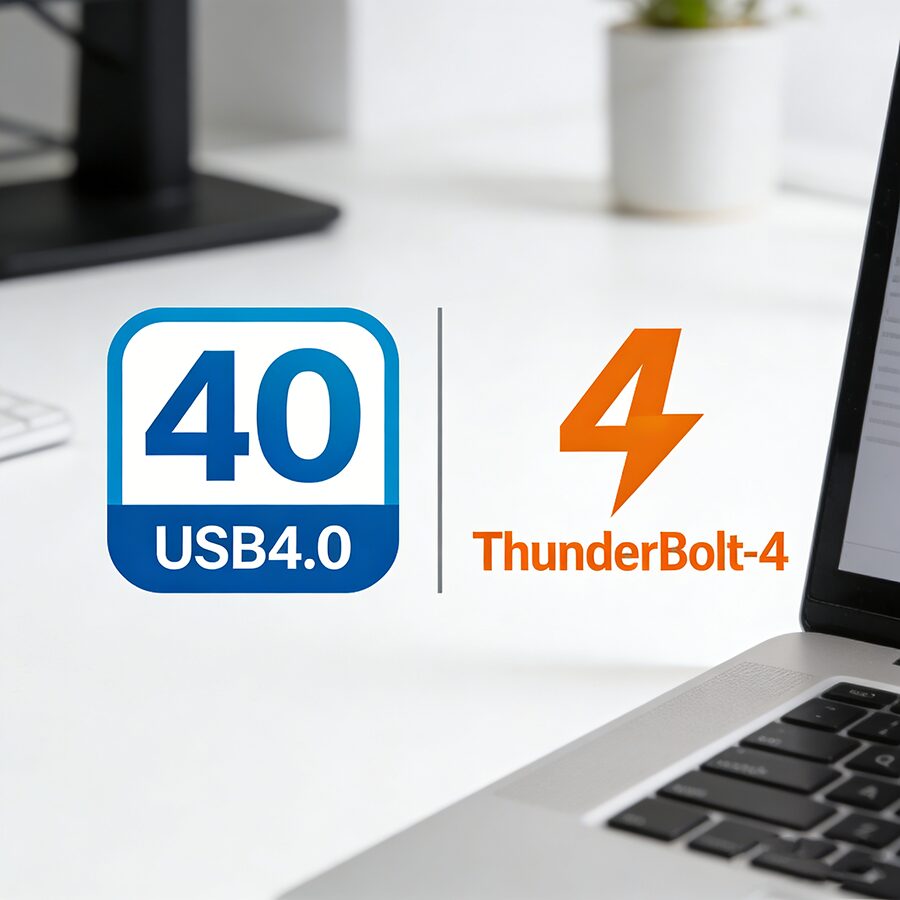
No more guesswork—look for these marks on the cable:
- USB4.0: A USB-C icon with “20” or “40” (e.g., “USB 40Gbps”).
- Thunderbolt 4: A lightning bolt symbol with the number “4” .

Compatibility: Will They Work Together?
Yes, but performance depends on the weaker link:
- USB4.0 cable + Thunderbolt 4 port: Runs at USB4.0 speeds (20–40Gbps).
- Thunderbolt 4 cable + USB4.0 port: Runs at USB4.0 speeds (20–40Gbps).
- Thunderbolt 4 cable + Thunderbolt 4 port: Unlocks full 40Gbps/15W+ performance.
Device Compatibility List: Which Cable Do You Need?
| Device/Use Case | Best Choice | Why? |
|---|---|---|
| Budget external hard drive | USB4.0 (20Gbps) | Saves cost; 20Gbps is enough for HDDs. |
| High-speed SSD (e.g., Samsung T7) | Thunderbolt 4 | 32Gbps+ ensures fast file transfers. |
| Dual 4K monitors | Thunderbolt 4 | Mandatory dual 4K support. |
| Laptop charging (15W+) | Thunderbolt 4 | 15W minimum avoids slow charging. |
| Long-distance setups (>2m) | Thunderbolt 4 | Maintains 40Gbps over longer runs. |

Final Verdict: Choose Based on Your Needs
- Pick USB4.0 if: You’re on a budget, need basic speeds (20Gbps), or use short cables (<2m).
- Pick Thunderbolt 4 if: You want reliable high performance (32Gbps+), dual displays, long cables, or need to power demanding devices.