
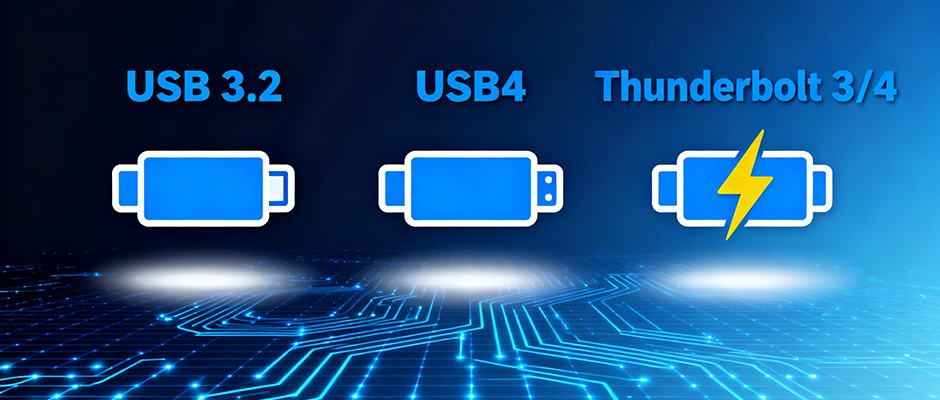
Ever stared at a pile of USB-C cables and wondered why they cost different or work differently? You’re not alone. USB 3.2, USB4, and Thunderbolt 3/4 all share the sleek USB-C shape but hide vastly different capabilities. Let’s cut through the confusion—here’s what you actually need to know.
At a Glance: Key Specs Comparison
Not all cables are created equal. This table breaks down the critical differences that impact your daily use:
| Feature | USB 3.2 (Gen 2×2) | USB4 | Thunderbolt 3/4 |
|---|---|---|---|
| Max Bandwidth | 20 Gbps | 40 Gbps | 40 Gbps |
| Data Transfer | Half-duplex | Full-duplex | Full-duplex |
| Power Delivery | No standard | Up to 100W | Up to 100W (140W max for some) |
| Video Support | Limited (via Alt Mode) | 1x 4K monitor | 2x 4K or 1x 8K monitor |
| Key Perks | Budget-friendly | Thunderbolt 3 compatible | Daisy-chaining (6 devices) |
| Typical Price | $5–$15 | $10–$30 | $15–$40 |
Note: USB 3.2 has slower sub-versions (e.g., 10 Gbps Gen 2), but Gen 2×2 is its fastest iteration .
What Makes Each Cable Unique?
1. USB 3.2: The “Everyday” Workhorse
USB 3.2 is the most common standard you’ll find in budget cables. It’s great for basic tasks but hits a wall with high-demand gear.
- Pros: Affordable, widely available, works with phones,and basic external drives.
- Cons: Can’t handle 8K video or external GPUs. Bandwidth is shared (half-duplex), so transfer speeds drop if you multitask .
2. USB4: The “Hybrid” Power Player
USB4 borrows Intel’s Thunderbolt 3 tech to bridge affordability and performance . Think of it as Thunderbolt’s more accessible cousin.
- Pros: 40 Gbps speed, 100W charging, and compatibility with Thunderbolt 3 devices. It dynamically allocates bandwidth—so video streaming won’t slow down file transfers .
- Cons: No daisy-chaining; needs a hub for multiple devices.
3. Thunderbolt 3/4: The “Pro” Choice
Co-developed by Intel and Apple, Thunderbolt 3/4 is built for power users. Despite identical speed to USB4, it adds pro-grade features .
- Pros:
- Daisy-chaining: Connect up to 6 devices (e.g., dock → SSD → monitor) with one cable—no performance loss.
- Top-tier video: Drives dual 4K monitors or a single 8K display natively.
- eGPU support: Powers external graphics cards for gaming or video editing.
- Cons: More expensive; overkill for casual use.
Which Cable Fits Your Scenario?
Match your cable to your tasks—no need to overspend on features you’ll never use.
📱 Casual Users (Phones, U 盘,Basic Drives)
Pick USB 3.2. It’s cheap and fast enough to transfer a 10GB movie in ~5 minutes. No need for extra bells and whistles here.
💻 Freelancers (Laptops, Single 4K Monitor, SSDs)
Go with USB4. It charges your laptop (100W), connects a 4K monitor, and transfers a 50GB project file in ~10 seconds—all without breaking the bank .
🎥 Pros (8K Video, eGPUs, Multi-Device Setups)
Thunderbolt 3/4 is non-negotiable. Video editors can chain a RAID storage array, 8K monitor, and dock to their laptop with one cable. Gamers will appreciate seamless eGPU performance .
Critical Compatibility Tip
All three use USB-C, but speed drops to the slowest link. For example:
- Thunderbolt 4 cable + USB 3.2 port = 20 Gbps max.
- USB4 cable + Thunderbolt 3 device = Full 40 Gbps (thanks to shared tech) .
Always check your device’s port specs (look for “Thunderbolt” or “USB4” logos) before buying a cable!
Final Verdict
- Save money: USB 3.2 for casual use.
- Balance performance: USB4 for most professionals.
- Go pro: Thunderbolt 3/4 for video, gaming, or complex setups.
Remember: A cable’s price reflects its tech—not just its brand. Invest in Thunderbolt if you need it, but stick to USB 3.2 for daily chores. Your wallet (and your sanity) will thank you.
Got more questions? Drop a comment below—we’ll help you pick the perfect cable!